


SUMMARY
The Fluminer L2 is a compact and innovative Scrypt ASIC miner designed for mining Litecoin (LTC) and merge-mining Dogecoin (DOGE). What makes this device unique is that it’s not just a miner – it also works as a Bluetooth speaker and even doubles as a heater. Pretty cool, right?
Manufactured by Fluminer, the L2 runs on the Scrypt algorithm with a hashrate of around 1 GH/s and consumes about 230W to 300W of power. It’s super portable, quiet at only 35db, and can be connected through Wi-Fi or Ethernet.
If you’ve just received your Fluminer L2, this step-by-step guide will walk you through everything from unboxing it to getting it up and mining – and yes, even playing your favorite tunes while you earn crypto.
What’s Inside the Shipment Box?
When you unbox the Fluminer L2, you’ll notice that it feels very premium – the packaging almost reminds you of opening an Apple product.
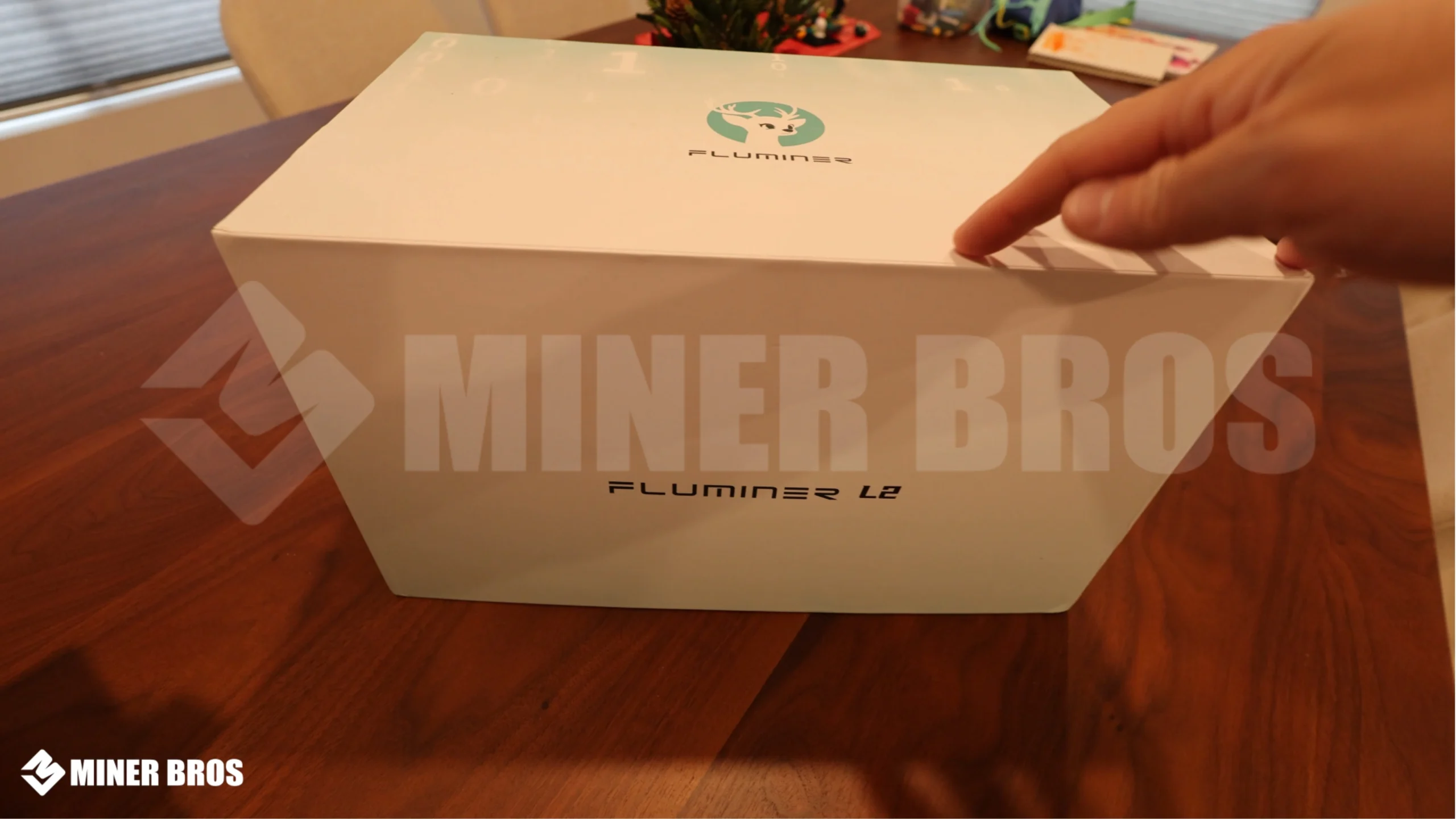
Inside the box, everything is neatly organized and well-protected with thick foam padding.

Here’s what you’ll find inside the shipment box:
- Fluminer L2 Miner Unit – the main device
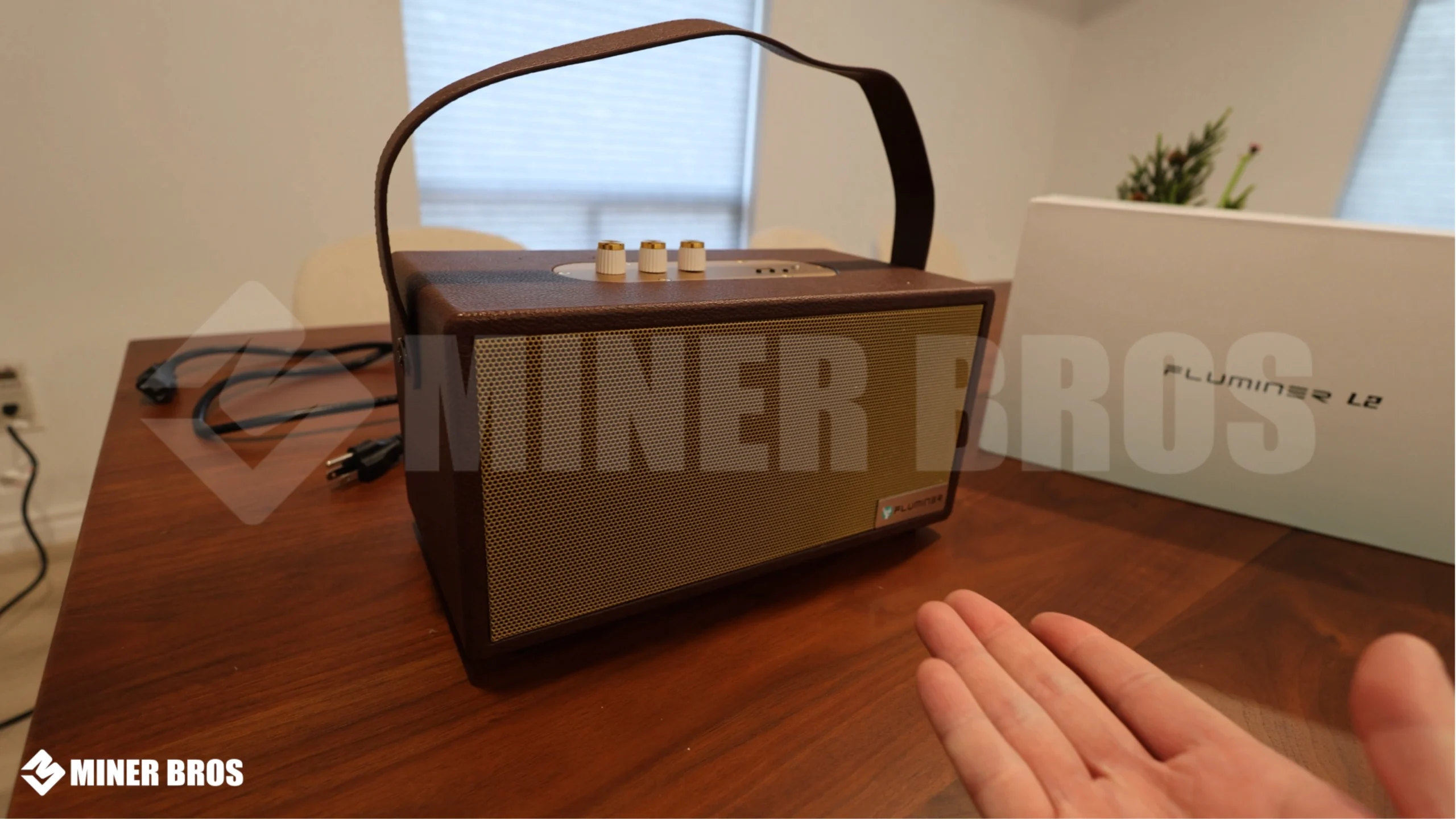
- Standard Power Cable – for connecting to the power outlet

Step-by-Step Instructions for Setting Up the Fluminer L2
Let’s go through how to set up your Fluminer L2 from start to finish.
1. Preparing the ASIC
- Choose a Location: Place your Fluminer L2 in a cool, well-ventilated area. Remember – it gives off some heat while mining, so don’t keep it in a completely enclosed space.
- Power Connection: Plug in the included power cable to the back of the Fluminer L2. You’ll find the power button nearby.

- Network Options: The L2 supports both Wi-Fi and Ethernet.
~ Ethernet: Gives lower latency and is great for stable connections.

~ Wi-Fi: More convenient if you want to place it anywhere around the house.

2. Configuring the ASIC
- Power On: Once plugged in, flip the power switch at the back. The device will light up and start broadcasting Wi-Fi and Bluetooth signals.
- Connect via Wi-Fi: On your smartphone or laptop, open your Wi-Fi settings.

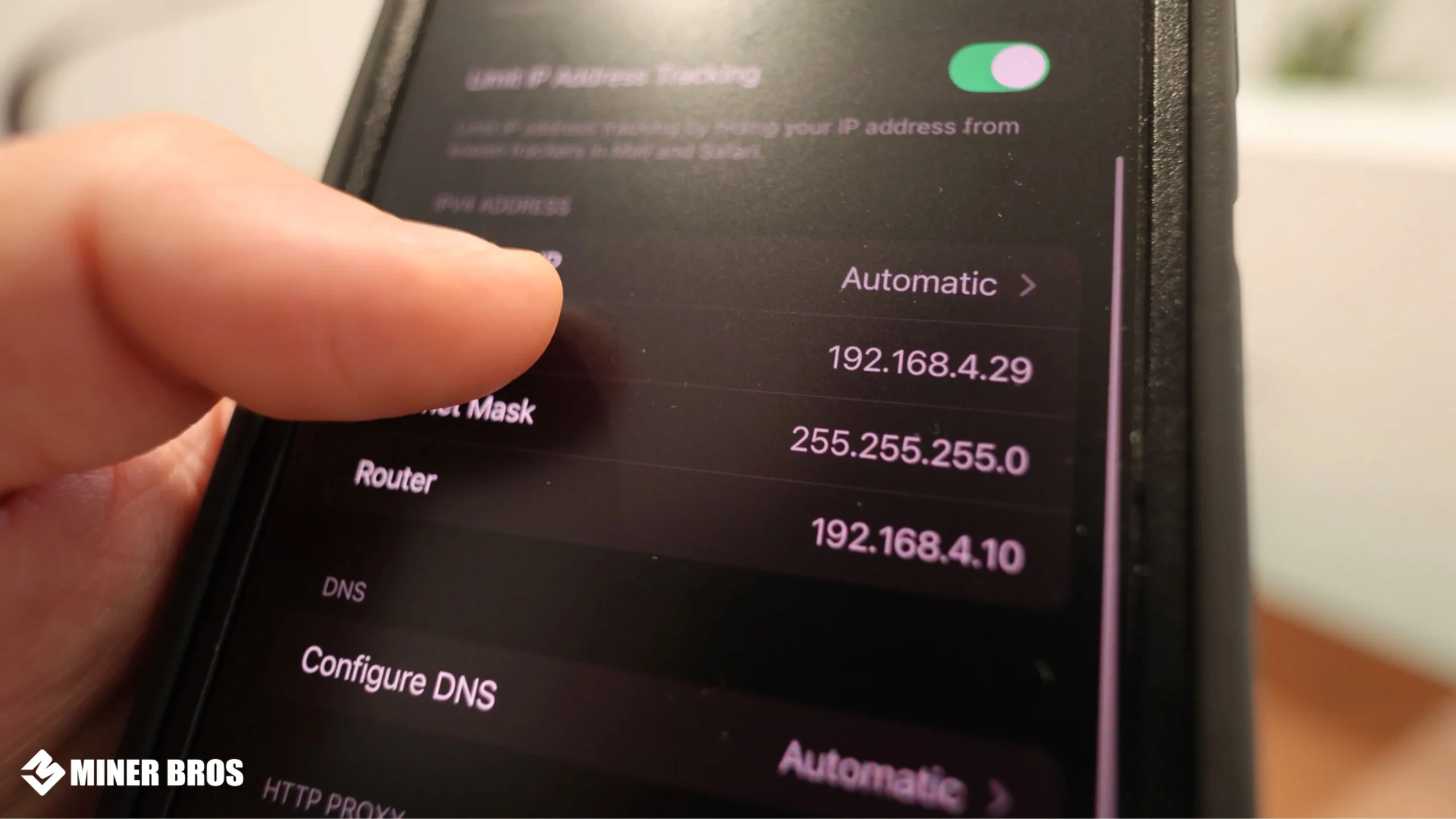
You’ll see a network name similar to: WIFI_95858, (Yours may vary)Connect to it. It might say “No Internet,” and that’s completely fine.
- Find the Device’s IP Address: Open your web browser and type in this address: 192.168.4.10

3. Accessing the Fluminer L2 via the Web Browser
Once you type the IP address into your browser, you’ll be asked to log in.
- Username: root
- Password: root
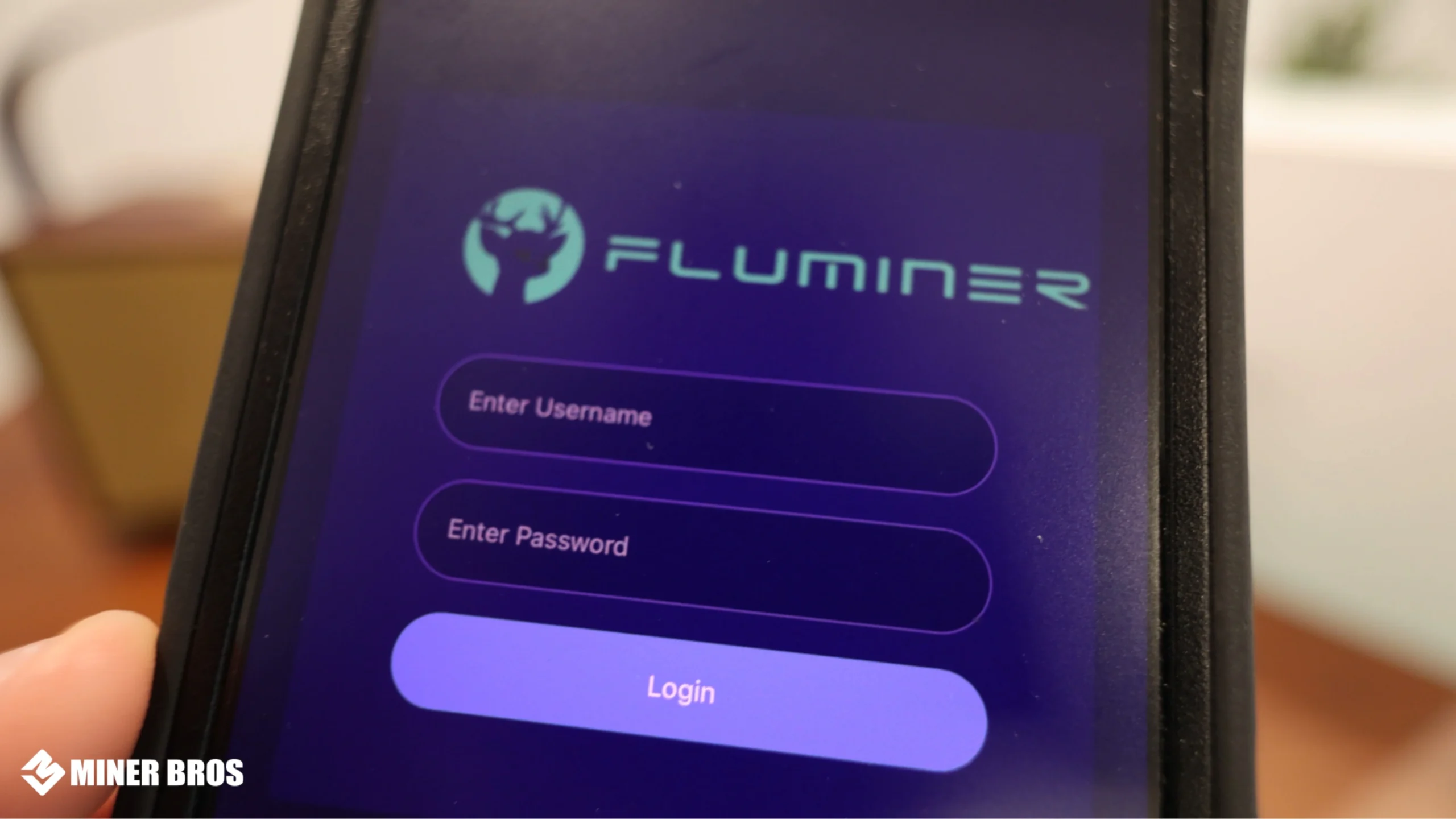
This will take you to the Fluminer L2 dashboard.
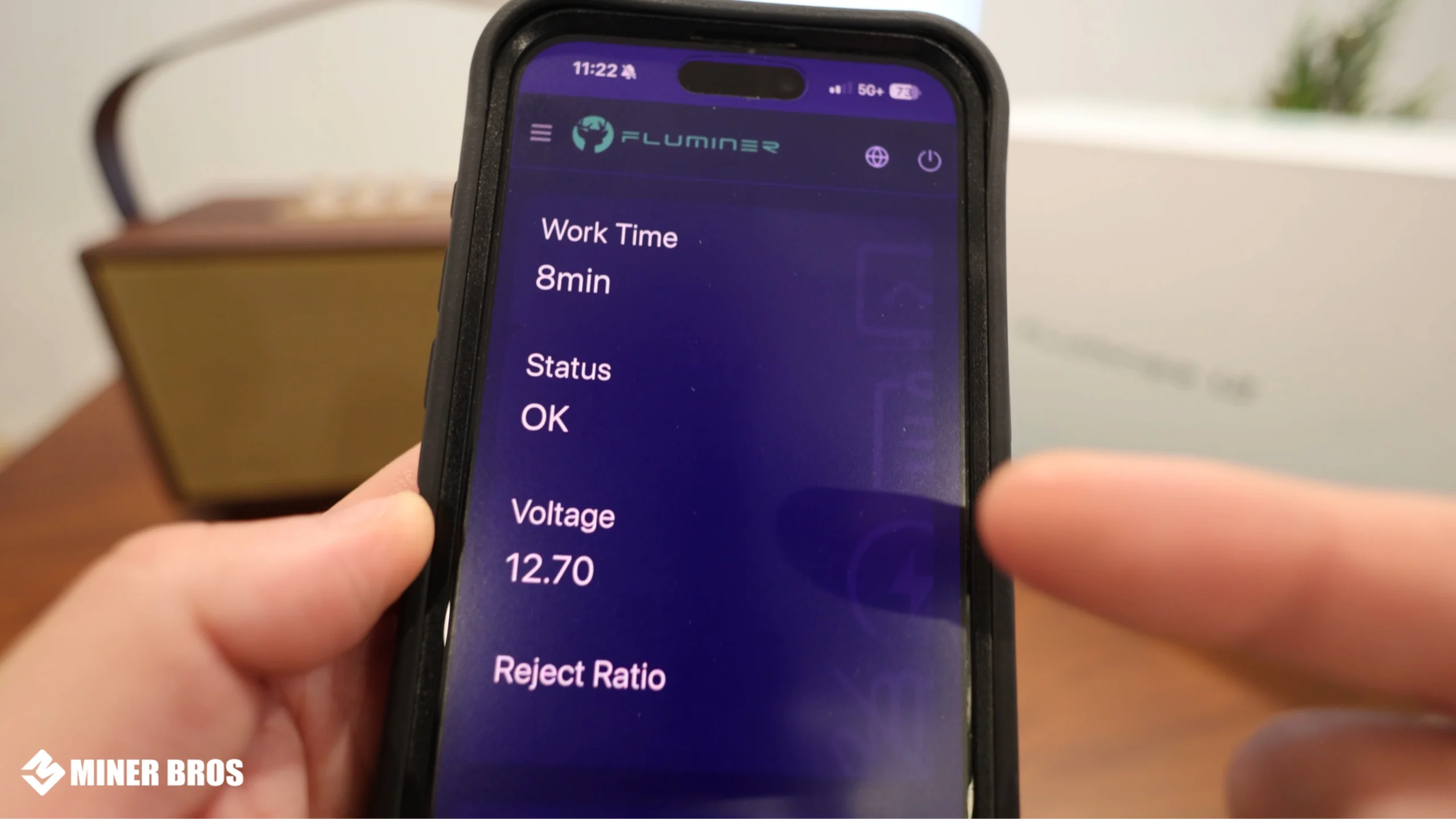
From here, you’ll be able to adjust your pool settings, Wi-Fi, and more.

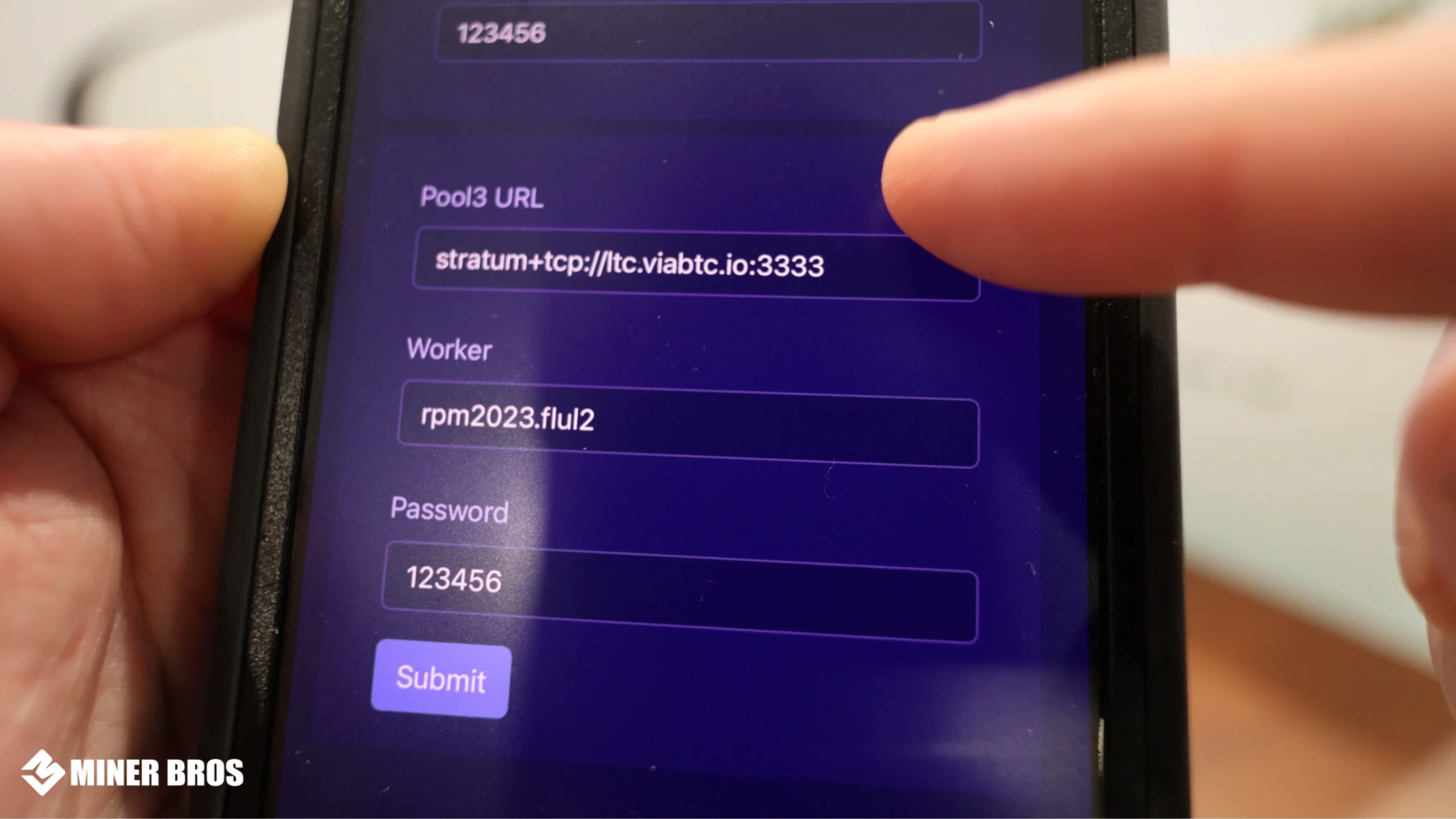
4. Adding the Mining Pool
Now it’s time to connect the L2 to your preferred mining pool.
1. On the dashboard, click “Pool Settings.”
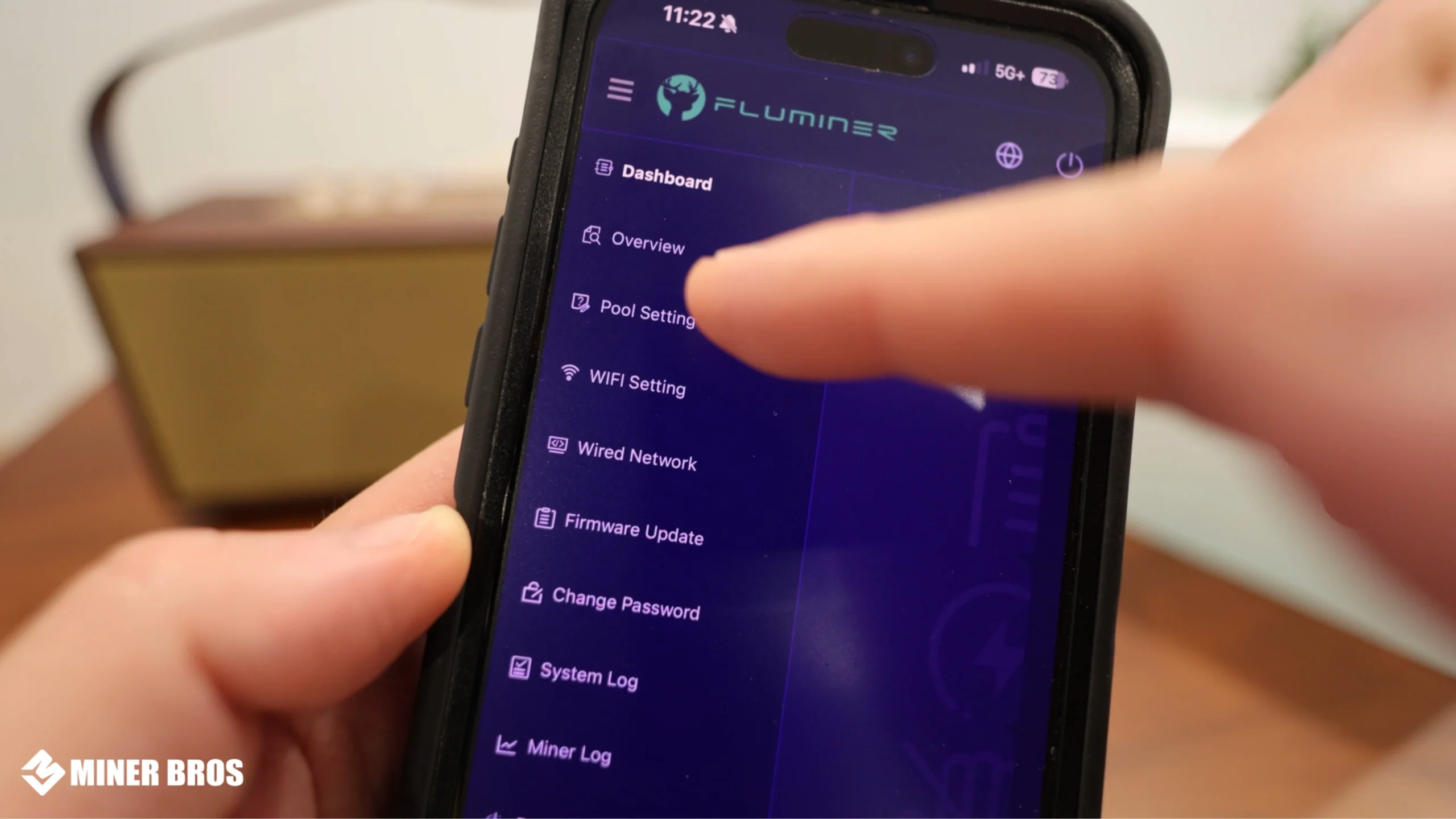
2. In this section, you’ll enter your mining pool details. For example:
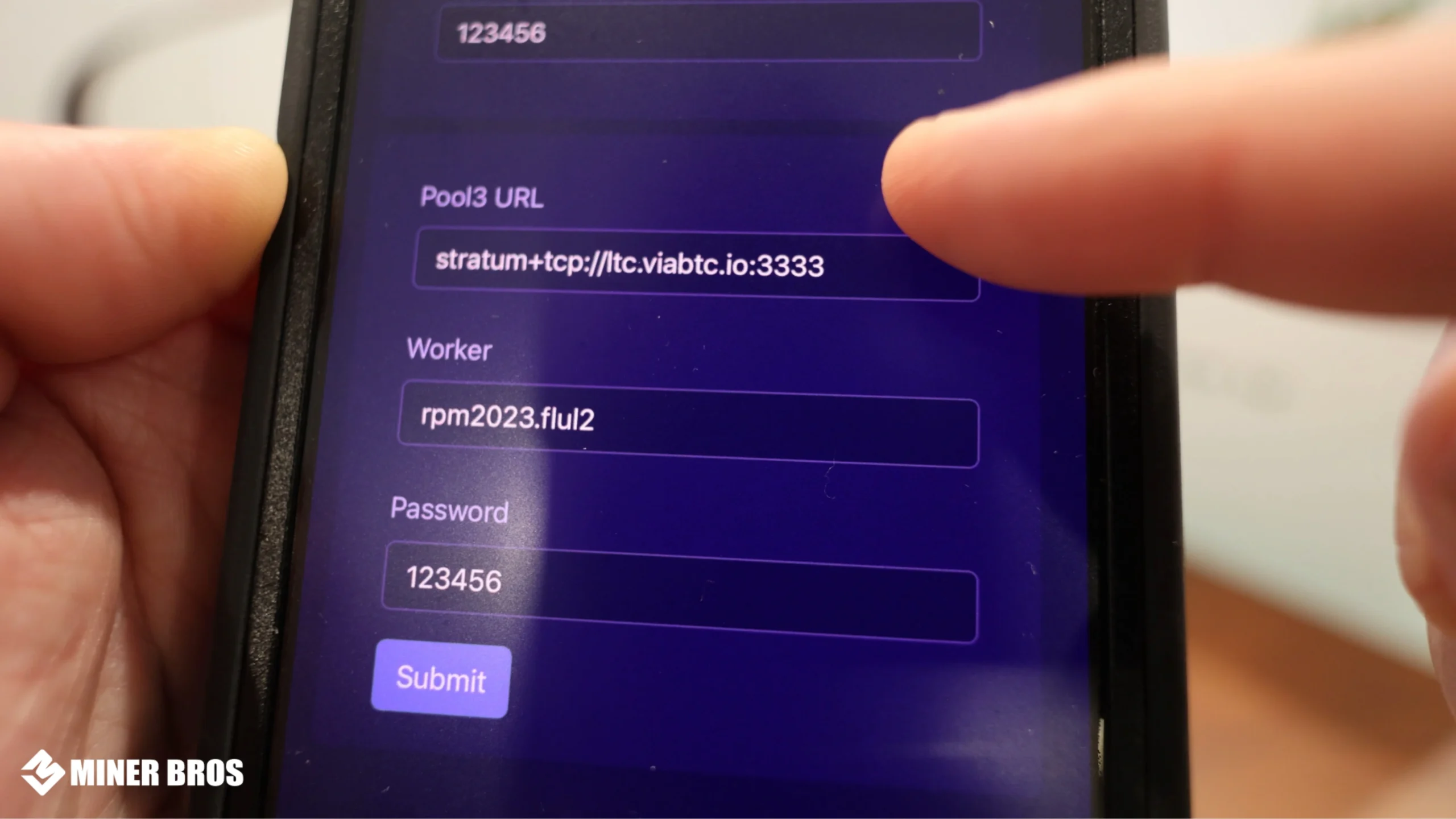
~ Pool URL: (e.g., stratum+tcp://ltc.viabtc.com:3333)
~ Worker Name: Enter your pool username followed by a dot and your miner name (e.g., YourName.L2).

~ Password: Usually “x” or blank, depending on the pool.
3. You can also add backup pools (Pool 2 and Pool 3) in case your main pool goes offline.


4. Click Submit.

It will say “Configuration Successful” and ask if you want to restart. You don’t have to restart yet.

Connecting the Fluminer L2 to Your Home Wi-Fi
Next, you’ll want the L2 to join your regular Wi-Fi network so it can mine online.
1. Go to the Wi-Fi Settings tab in the dashboard (look for the three-line menu icon).
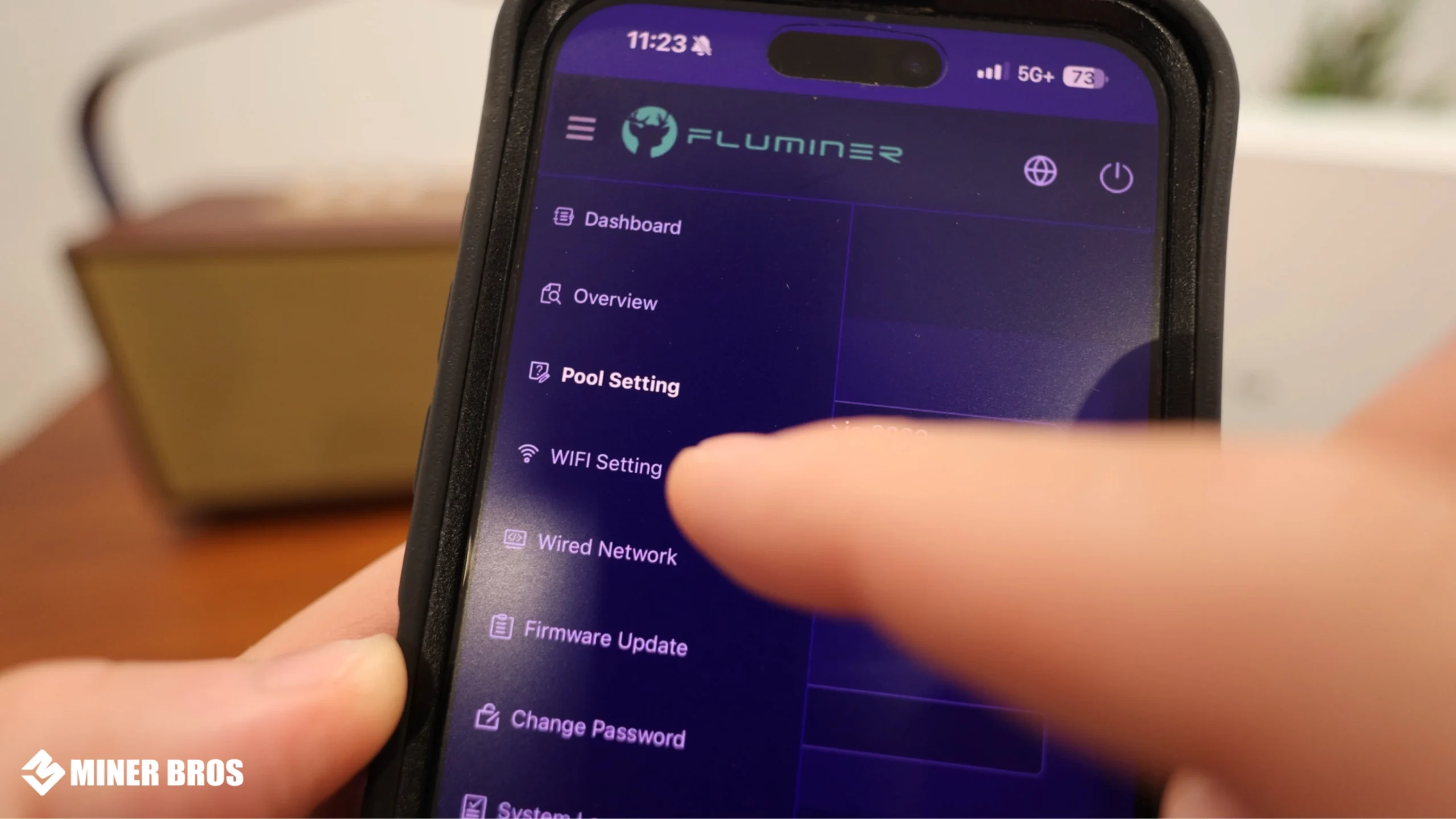
2. Enter your Wi-Fi SSID (your home network name) and password.

3. Click Submit, then confirm “Restart.”

4. The device will reboot and connect to your home Wi-Fi.

After restarting, your phone or computer will automatically switch back to your normal home Wi-Fi.
5. Start Mining
Once your Fluminer L2 reconnects, it’ll start communicating with your mining pool.
After about 10 minutes, you should start seeing hash rate activity in your pool dashboard (like ViaBTC or any other Scrypt pool you chose).

Typical stats for the Fluminer L2:
- Hashrate: ~1.0 to 1.2 GH/s
- Power Draw: ~330 – 340W at the wall (slightly higher than advertised)
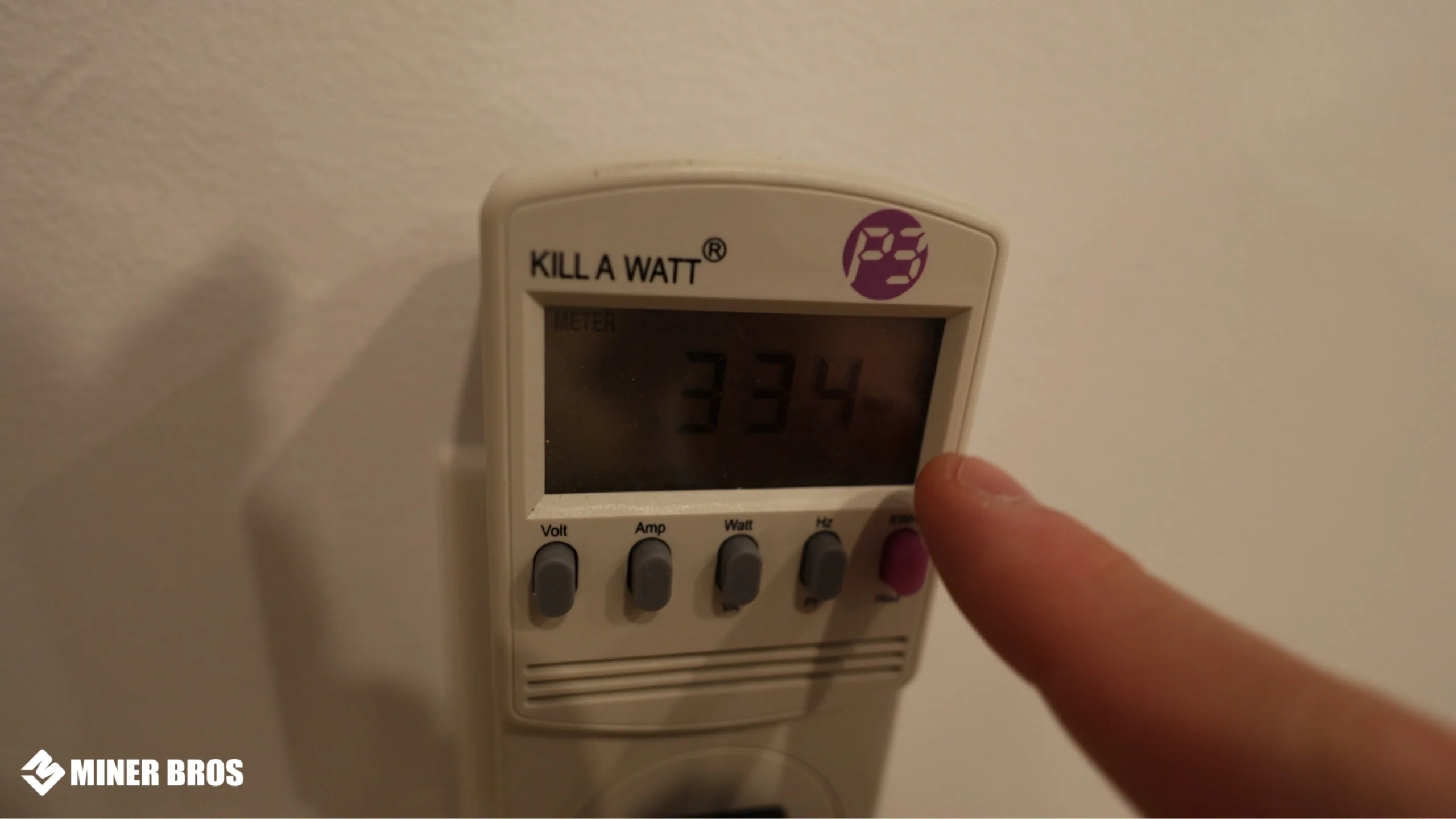
And that’s it – your Fluminer L2 is officially mining!
6. Setting Up the Music Player
Yes, you read that right – the L2 can play music while mining!
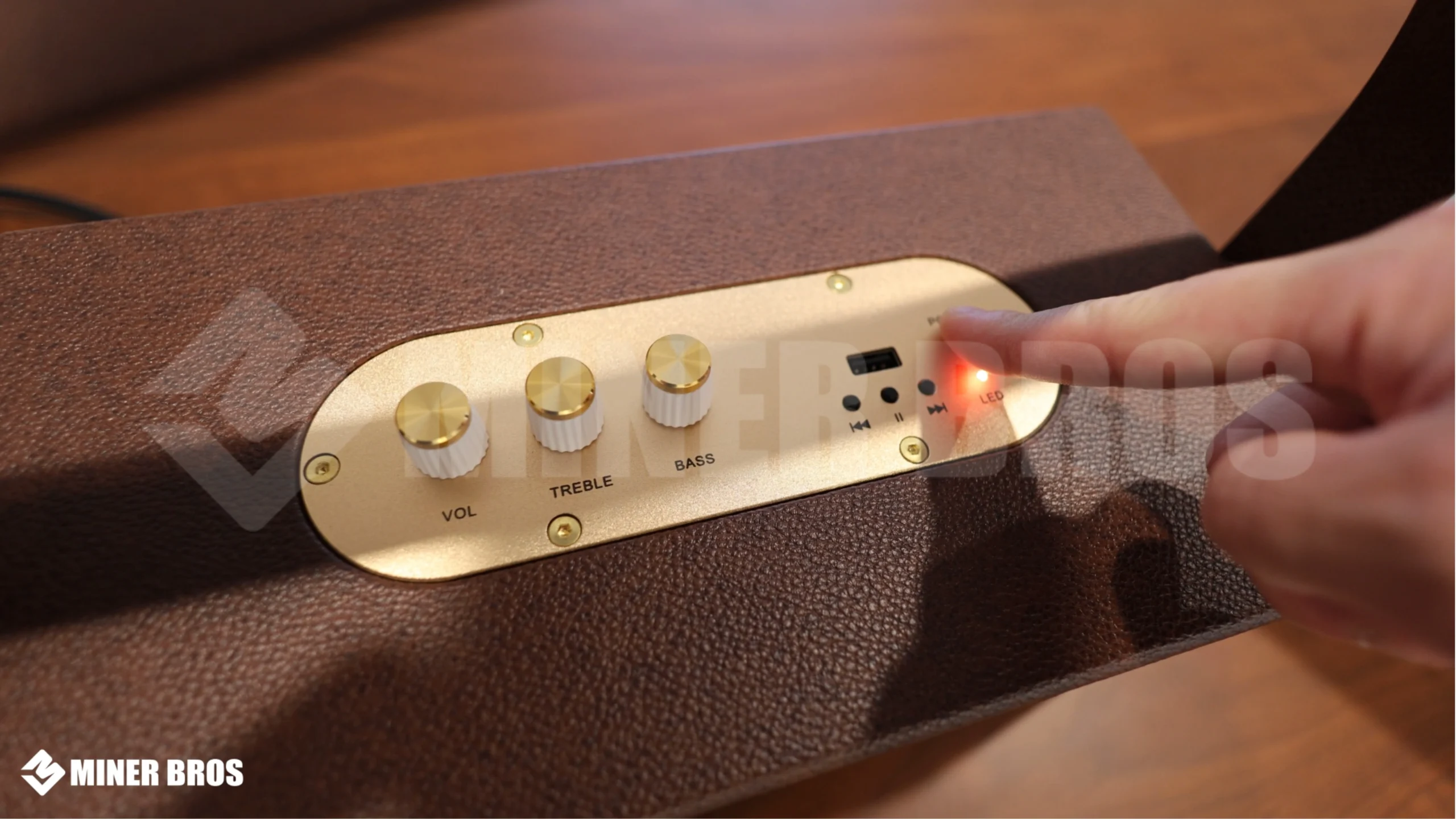
1. Turn on Bluetooth on your phone.

2. Look for a device name like FL88 and connect to it.
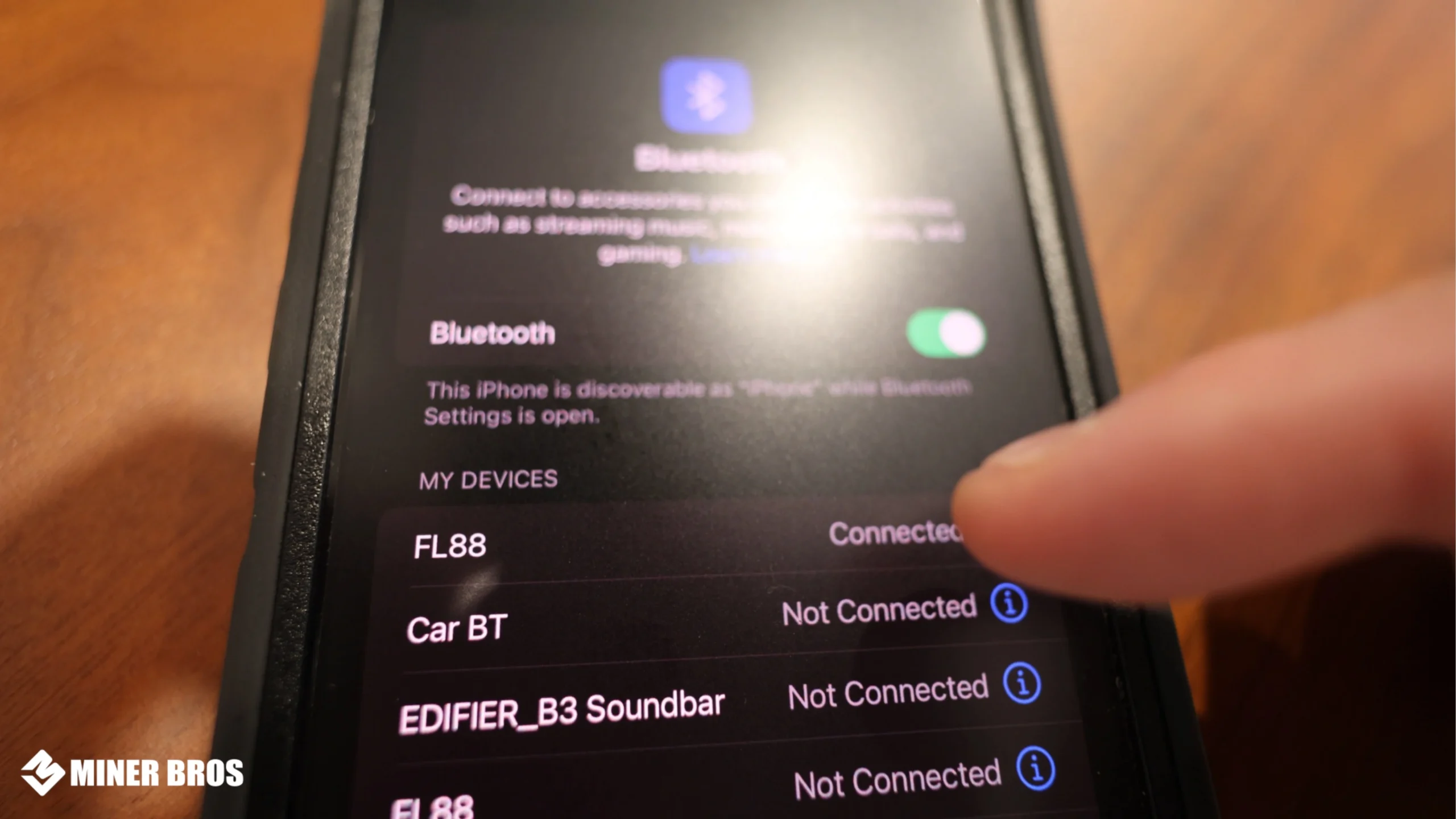
3. Once connected, open your favorite music app and hit play.
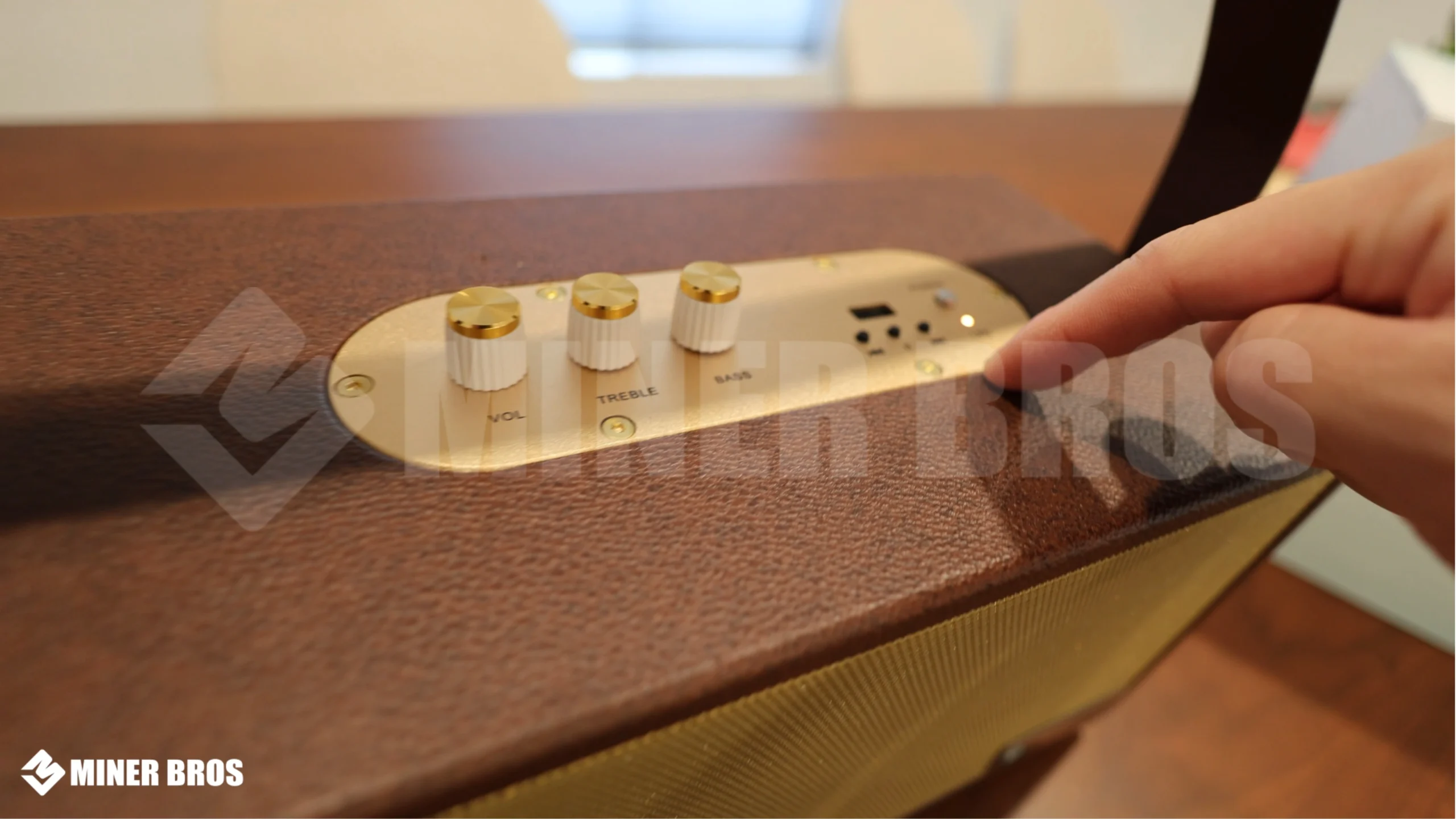
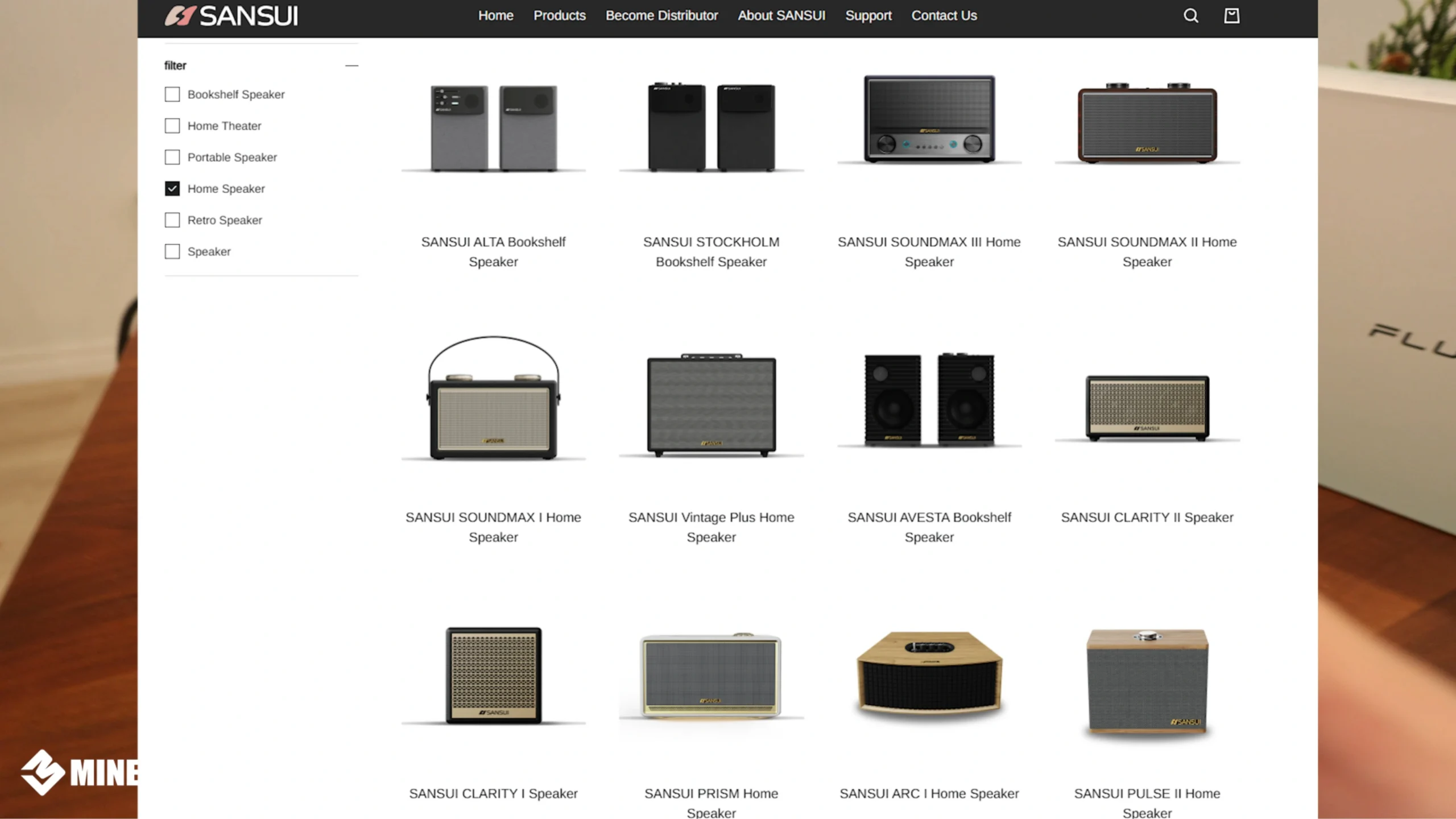
The L2 features a Sansui speaker, known for good quality sound. You can control volume, bass, and treble right from your phone.
The best part? Playing music barely adds any power usage – only about 1-2 extra watts!

For the non-readers, we made a feature film!
Check out how to Setup Fluminer L2
CONCLUSION
The Fluminer L2 is more than just another Scrypt miner – it’s a multipurpose device that mines crypto, produces heat, and even plays music. Its plug-and-play setup makes it perfect for beginners or home users who want a quiet, low-power mining experience.
By following this simple guide – connecting power, accessing the web dashboard, setting up your pool, and linking Wi-Fi, you’ll have your miner running in minutes.
And if you want to enjoy your favorite tunes while earning Litecoin and Dogecoin, the built-in Bluetooth speaker makes it even more fun.
Check out the latest Scrypt Miners
FAQs ON HOW TO SETUP FLUMINER L2
-
What algorithm does the Fluminer L2 use?
It uses the Scrypt algorithm, perfect for mining Litecoin (LTC) and merge-mining Dogecoin (DOGE).
-
Does it support Wi-Fi?
Yes, it has built-in Wi-Fi, so you can place it anywhere without needing an Ethernet cable.
-
Can I use it as a Bluetooth speaker?
Absolutely! Just connect via Bluetooth (device name FL88) and enjoy your music.
-
How much power does it use?
It consumes around 300-340W during mining, depending on your environment.
-
How noisy is it?
It’s pretty quiet, operating at about 35 decibels, similar to a small fan.
-
What’s the warranty period?
The Fluminer L2 comes with a 365-day warranty from the manufacturer.
-
What coins can I mine with it?
Mainly Litecoin (LTC) and Dogecoin (DOGE), but any Scrypt-based coin should work.

Join our Newsletter
Get the week’s best cryptomining content in your inbox.

Han su
Han Su is a technical analyst at CryptoMinerBros, a leading provider of cryptocurrency mining hardware. He has over 5 years of experience in the cryptocurrency industry and is an expert in mining hardware, software, and profitability analysis.
Han is responsible for the technical analysis and research on ASIC Mining at Crypto Miner Bros. He also writes in-depth blogs on ASIC mining and cryptocurrency mining, and he has a deep understanding of the technology. His blogs are informative and engaging, and they have helped thousands of people learn about cryptocurrency mining.
He is always looking for new ways to educate people about cryptocurrency, and he is excited to see how the technology continues to develop in the years to come.
In spare time, Han enjoys hiking, camping, and spending time with his family. He is also an avid reader, and he loves to learn about new things.
Similar Blogs
Optimizing Mining Efficiency: Advanced Monitoring Tools and Metrics
A complete guide to mining efficiency metrics, real-time monitoring tools, and dashboards for smarte...
ASIC Firmware & Software: How to Keep Your Miners Updated and Secure
Discover how to upgrade ASIC firmware safely, safeguard against security risks such as Antbleed vuln...
Advanced Cooling and Noise Management for Home ASIC Mining Rigs
Complete guide on cooling and noise reduction for home bitcoin mining. Learn liquid cooling, immersi... © 2018- Miner Bros Limited. All rights reserved

 EN EN
EN EN  ES
ES